
Import your Tradovate trades into a journal
Export the Orders report from Tradovate, drop the CSV into NeoTLog, and every fill is matched into round trips with commissions, statistics and a P&L calendar. It takes about a minute, and the free plan covers 100 imports a year.
1. Export the Orders report from Tradovate
Desktop platform
- Open the Tradovate desktop platform.
- Click the Accounts tab in the upper panel and select the account you want to export.
- Click the gear icon next to the selected account.
- Open the Orders tab and select the date range you want.
- Click Go, then click Download Report.
- Save the CSV file.
Web platform
- Log in to the Tradovate web platform.
- Open Reports, then the Orders tab.
- Select the account and the date range.
- Click Download CSV / Download Report.
On a funded account? Apex Trader Funding and Earn2Trade run evaluations and funded accounts on Tradovate, so this is the export to use. Make sure the funded account, not the demo one, is selected before you download. Topstep is no longer one of them — it moved to its own platform, TopstepX, which exports a different file.
2. What the file looks like
The Orders report is a 26-column CSV. This is the real header row, with one filled order of sample data underneath it:
orderId,Account,Order ID,B/S,Contract,Product,Product Description,avgPrice,
filledQty,Fill Time,lastCommandId,Status,_priceFormat,_priceFormatType,_tickSize,
spreadDefinitionId,Version ID,Timestamp,Date,Quantity,Text,Type,Limit Price,
Stop Price,Filled Qty,Avg Fill Price

2280001,DEMO-77421,2280001,Buy,ESM6,ES,E-Mini S&P 500,5242.75,1,
2026-05-04T09:32:00.000-05:00,9900001,Filled,-2,0,0.25,,5500001,
2026-05-04T09:32:00.000-05:00,2026-05-04,1,,Market,,,1,5242.75
Wrapped here for reading — in the file each order is one line.
NeoTLog reads Contract, B/S, filledQty (or
Filled Qty), avgPrice (or Avg Fill Price),
Fill Time, Status, Type and the order id. The rest of the
columns are ignored, and extra columns don't break anything — exports differ slightly between
platform versions and the importer looks up columns by name, not by position.
3. Import it
- Create a free NeoTLog account, or log in.
- Open Import and choose Tradovate.
- Drop in the CSV. The date format is preset to MM/DD/YYYY — change it in the dropdown if your export uses another one, and the preview will show you which is right.
- Import. Duplicate fills from an overlapping date range are detected, so re-importing a wider export later is safe.
4. What you get
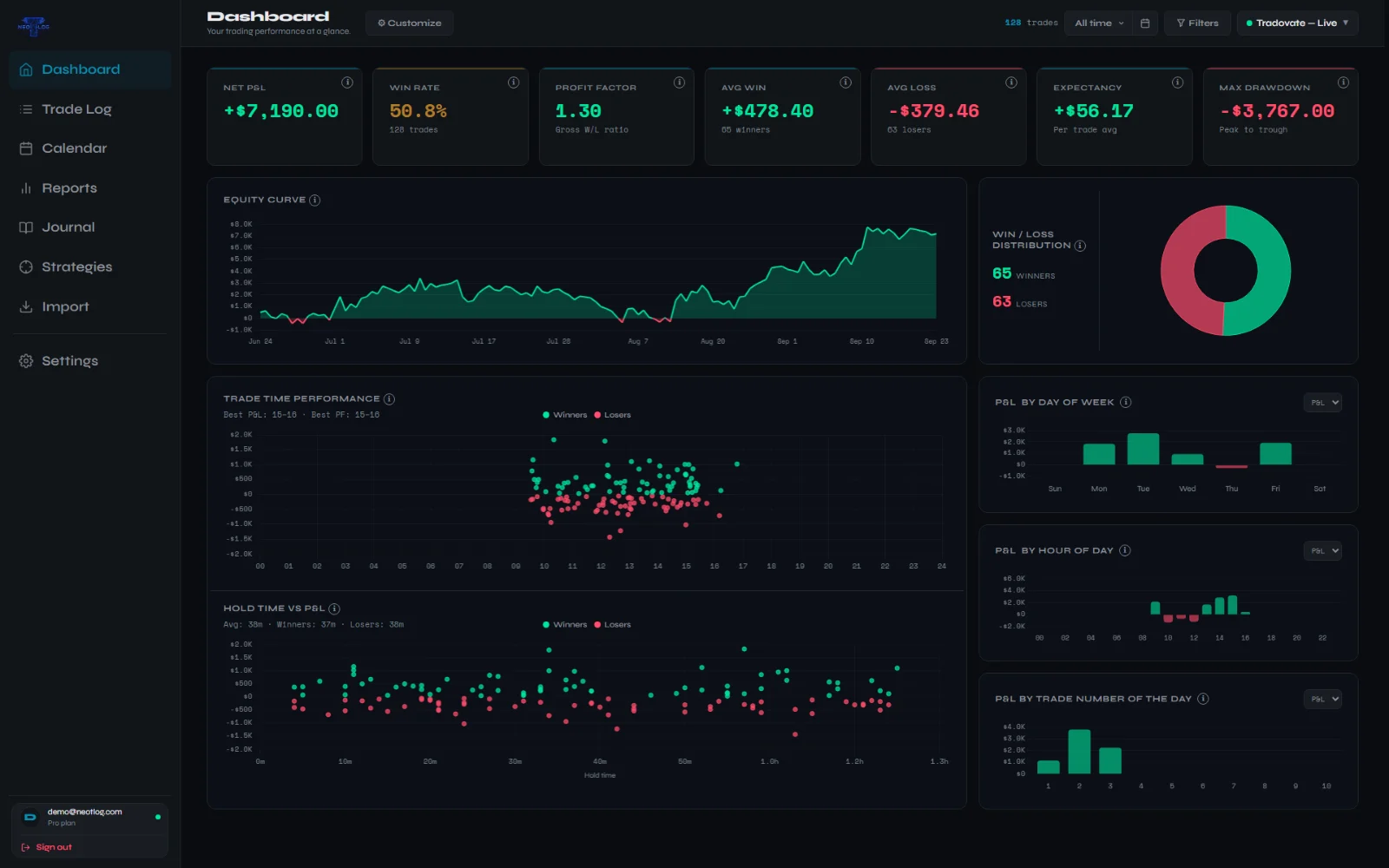
Fills are matched first in, first out into closed round trips, so an entry scaled in over four orders and out over two becomes one trade with one average entry, one average exit and the right quantity. From there:
- Net P&L, win rate, profit factor, expectancy, average win and loss, max drawdown
- Equity curve, P&L calendar by day and week, and time-of-day and session breakdowns
- Commissions, when the export carries them — see the note below
- MAE and MFE per trade — how far the position ran against you and for you before it closed
- Notes, tags and strategies per trade, plus screenshots saved to your account
- AI performance reports and the screenshot SL/TP reader on the paid plans
Commissions are usually not in this file. Tradovate keeps fees in the separate Cash History report, so an Orders export typically has no commission column and your P&L will be gross. You can add the cost per trade in NeoTLog, or keep an eye on Cash History for the real figure. Fill times are platform-local rather than UTC, which is why the import asks you to confirm the timezone.
5. What doesn't import
Tradovate can export several different reports, and only the Orders report carries fills. These won't produce trades, and NeoTLog will tell you so rather than importing something wrong:
Performance.csv, positions reports, account summaries and statements- Cash-history-only files
- Any file missing Contract, B/S, filled quantity, fill price or Fill Time
Cancelled, rejected and still-working orders are skipped on purpose: only rows marked Filled or Partially Filled are real fills.
Questions
Does this work with my Apex or Earn2Trade account?
Yes. Those firms run funded and evaluation accounts on Tradovate, so you export the same Orders report and import it the same way. Pick the funded account in the account selector before you export. Topstep moved to its own platform, TopstepX, which exports a different file.
Do I need a paid plan?
No. The free plan includes 100 imports per calendar year and needs no card. Paid plans add AI performance reports, the screenshot SL/TP reader and unlimited imports.
How are partial fills handled?
Rows marked Filled or Partially Filled are imported at their filled quantity and average fill price, then matched first in, first out into round trips.
Are commissions included?
Only if your export has a commission column, and the Orders report usually does not — Tradovate keeps fees in Cash History. Where the Commission Fill Rate column is present, NeoTLog multiplies it by the filled quantity instead of booking it once per row, since it is a per-contract rate.
Can I get MAE and MFE on futures trades?
Yes, with your own free Massive market-data key, added under Settings → Market data. Crypto excursions are filled in by NeoTLog itself; futures, stocks, options and forex run on your key, so that data stays yours.
I trade somewhere else too.
NeoTLog reads exports from 50+ platforms. There's a guide for Rithmic R|Trader Pro, and beyond that NinjaTrader, cTrader, DXtrade, TradeLocker, MetaTrader 4 and 5, Interactive Brokers, Schwab, Webull, Binance, Bybit and more. The full list is on the home page, and several accounts can live in one journal.
Import your Tradovate export
Free plan, 100 imports a year, no card. Your file is parsed in your browser.